
3 minutes
Link-Local File Transfer
Do you:
- Have two Linux machines sitting next to each other?
- Want to transfer some files?
- Not have a USB stick handy?
- Have an ethernet cable?
Then this simple hack guide is for you!
You can connect the two computer directly with each other using an ethernet cable
and transfer a file using netcat.
This will pipe the file in on one end of the cable, and it will come out the other end.
Prerequisites
On both machines, install netcat-openbsd.
By default, Debian comes with netcat-traditional, which does not support IPv6.
sudo apt remove netcat-traditional
sudo apt install netcat-openbsd
Connect the computers
Directly connect the two computers using an ethernet cable (possibly using RJ45-to-USB-C adapters).
There is no switch or any other networking equipment inbetween! It is really a direct link. On modern machines this should work with any ethernet cable, because recent network cards support Auto-MDI-X. On older hardware, you need to use a crossover cable (due to the absence of a switch).
Get the link-local IPv6 address
On the target machine, list the IPv6 addresses of the interfaces:
ip -6 a
Look for the link-local address, which starts with fe80:.
Note down this address.
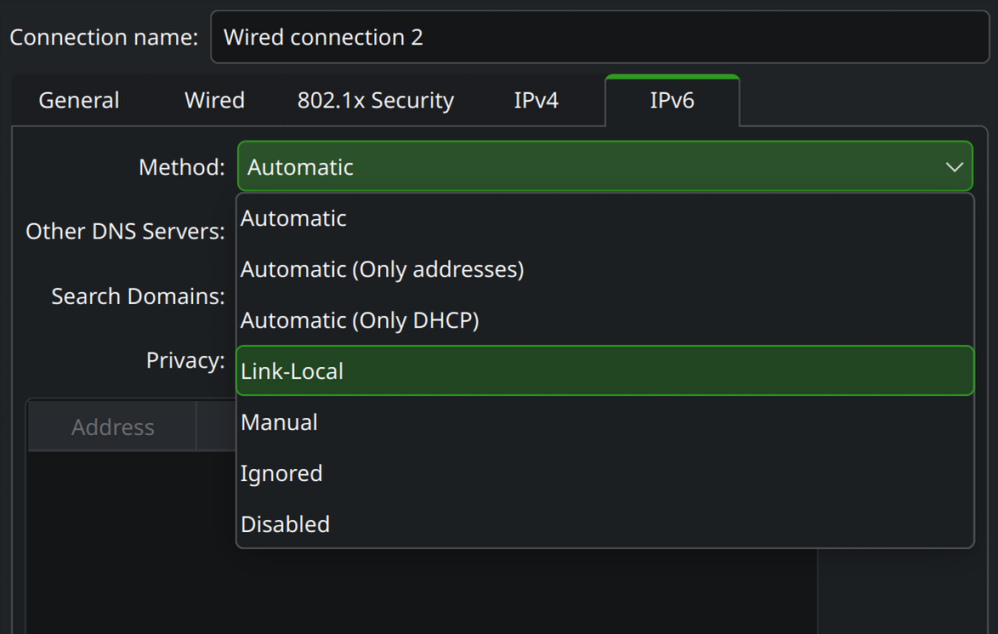
If either of your computers has a network manager (which is very likely if it has a desktop environment), you need to change the IPv4 and IPv6 address selection method from “Automatic” to “Link-local” for the wired interface. Otherwise it will look for a DHCP server (to no avail).
On KDE Plasma, the network manager settings look like this:
Check connectivity
Check that the source machine can ping the target machine. Run the following command on the source machine:
ping fe80::1122:3344:5566:7788%eth0
This is the IPv6 address of the target machine followed by the interface name of the source machine.
In IPv6 you need to add the interface name at the end, separated by %.
This is because all interfaces share the same link-local subnet (fe80::/10),
so the network stack needs to know through which interface to send the traffic.
Your network interface is called something like enp0s10 or eth0.
You can list the available interfaces with:
ip link show
This also shows the state of the link (UP/DOWN).
Do the file transfer
On the target machine, start netcat:
nc -vl6 9000 > file.txt
This causes netcat to listen on port 9000 and to write any data that it receives to the named file.
On the source machine, send the data with netcat:
nc -N fe80::1122:3344:5566:7788%eth0 9000 < file.txt
This causes netcat to connect to the given IPv6 address and port, and then send the contents of the file. The netcat instance on the target machine should receive the contents and write them to its file.
Security
This is a very basic transfer mechanism. It’s secure because (and only if) you physically control the entire, single network cable. It’s intended for quick-and-dirty on-desk setups.
Importantly, the netcat approach does not have any cryptographic confidentiality, integrity, or authenticity guarantees!
As a basic integrity check, you can compute the sha256sum of the file on both ends.
If you are doing this over a real network, you should use ssh combined with scp or rsync. They require a bit more setup than netcat, but provide security against a network adversary.
542 Words
2026-03-27 07:00 +0000